
The Phone Setting Many Older Americans Wish They Changed Sooner
A phone can do the right thing in an emergency, but only if the settings are already in place. Many people never touch these menus until after a scare or a fall. If you want fewer spam calls, bigger text, and a faster way for others to help, this article is for you.
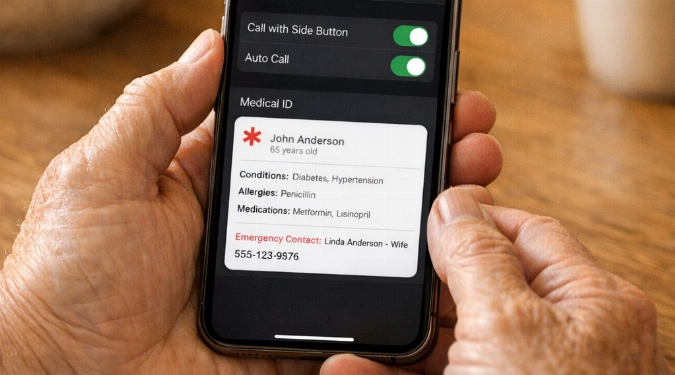
Set up Emergency SOS, Medical ID, and crash alerts in under 10 minutes. Adjust call, text, and display settings so your phone is easier to use. Lock down spam calls and scam texts without missing real ones. You will leave with a simple checklist and exact menus to open.
The Setting People Regret Ignoring
The biggest regret is skipping Emergency SOS and Medical ID. These tools help others help you fast. They work even if you cannot talk. They also help if your phone is locked.
Emergency SOS can call emergency services. It can also share your location with chosen contacts. Medical ID can show allergies, conditions, and medications. It can also show your emergency contacts.
Set Up Emergency SOS In Two Minutes
On iPhone
- Open Settings and tap Emergency SOS.
- Turn on Call with Hold or Call with 5 Presses.
- Turn on Call After Severe Crash if available.
- Tap Emergency Contacts to add people from Contacts.
On Android
- Open Settings and search for Emergency or Safety & emergency.
- Tap Emergency SOS or Emergency assistance.
- Set the trigger, like pressing the power button five times.
- Add emergency contacts and enable location sharing.
If you share your phone plan, test the trigger once. Stop the call before it connects. You want muscle memory without a surprise siren.
Fill In Medical ID So It Helps
What To Include
- Full name, age, and a recent photo.
- Allergies and major diagnoses.
- Implants, pacemaker, or anticoagulant use.
- Primary doctor name and a phone number.
- Two emergency contacts who answer unknown calls.
Where To Find It
- iPhone: Open Health and tap your profile. Tap Medical ID and enable Show When Locked.
- Android: Open Settings and go to Safety & emergency. Tap Medical information and Emergency contacts.
Keep it short. First responders scan, they do not read essays.
Make The Screen Readable Without Glasses
Most people only raise brightness. That drains the battery and still strains your eyes. Use text size, bold text, and contrast instead.
- Increase text size and enable bold text.
- Turn on “Reduce transparency” or “High contrast text.”
- Try “Color filters” if you struggle with certain shades.
- Set Auto-Lock to a longer time, like 2 or 3 minutes.
On iPhone, check Settings > Accessibility > Display & Text Size. On Android, check Settings > Accessibility, then Display options.
Stop Spam Calls Without Blocking The Doctor
The goal is fewer interruptions, not missed care. Use built-in filtering first. Then add a reputable blocker if needed.
- iPhone: Turn on Silence Unknown Callers in Phone settings.
- Android: Enable Caller ID & spam in the Phone app settings.
If you want more control, consider apps from Hiya, Truecaller, RoboKiller, Nomorobo, YouMail, or Google Phone’s built-in screen tools. Paid plans often run about $2.99 to $5.99 per month. Try free modes first.
Create a “VIP” habit. Save clinics, pharmacies, and caregiver numbers as contacts. Unknown call filtering works best when your contacts list is complete.
Turn On Two Quiet Safety Nets
- Find My: Share location with one trusted person for lost-phone help.
- Backups: Enable automatic cloud backup so photos and contacts survive a broken phone.
Also add a lock screen message. Use “If found, call” with a trusted number. Avoid putting your home address on the lock screen.
Ten-Minute Checklist To Do Today
- Enable Emergency SOS and add two contacts.
- Fill Medical ID and show it when locked.
- Increase text size and enable bold text.
- Turn on spam filtering, then save key numbers.
- Enable Find My sharing with one person you trust.
- Turn on automatic backup and confirm it runs.
FAQs
Will Emergency SOS call my contacts or emergency services first?
It usually calls emergency services first. It then alerts your emergency contacts with your location. Exact behavior varies by phone and settings.
What if I do not want location sharing all the time?
Use SOS location sharing only. Avoid always-on sharing in Find My. You can also share only while using an app.
How do I practice without calling anyone?
Trigger SOS and watch the countdown. Cancel before the call starts. Practice once, then stop. Over-practice increases mistakes.
Disclaimer: The information provided in this article is for educational and informational purposes only. It does not constitute professional advice. Readers should conduct their own research and consult with qualified professionals before making any decisions.